Sony S-Log3 LUTs for S-Gamut3.Cine
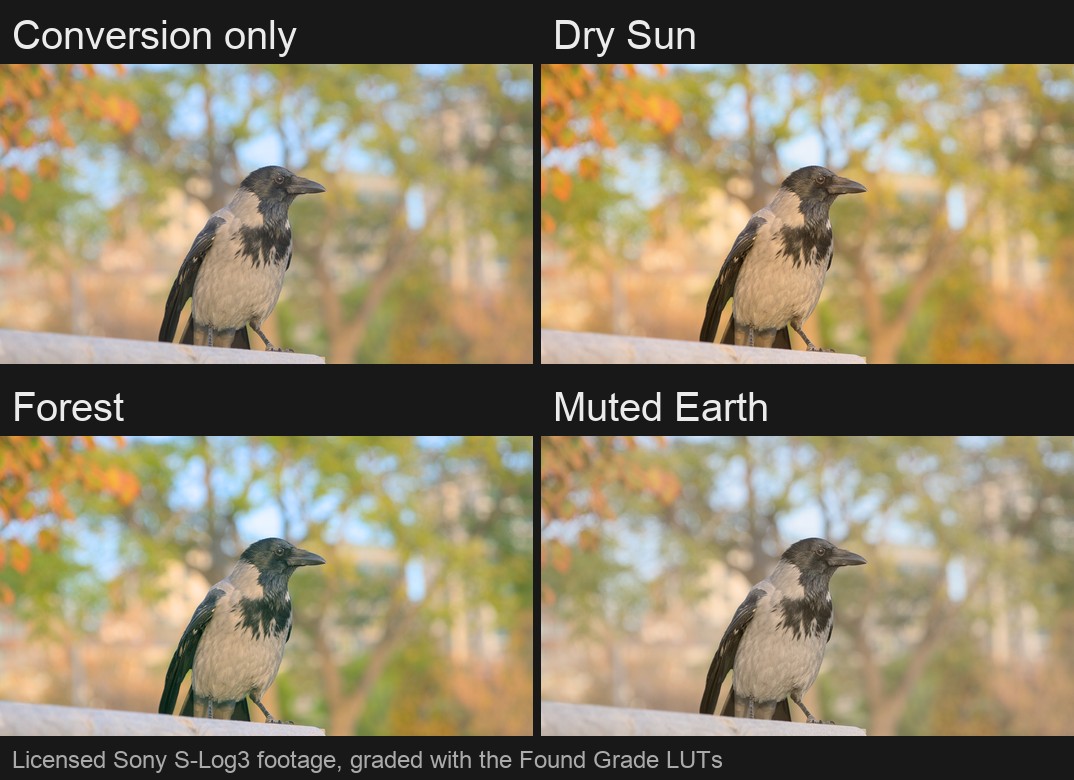
Found Grade S-Log3 files are built for footage recorded with the S-Log3 gamma and the S-Gamut3.Cine color mode. Each file converts that footage to Rec. 709 and applies one look.[1][2] The frames below are licensed Sony S-Log3 clips run through the pack.[3]
USD 29, one time. 26 looks, .cube, 33-point grid.
Pay With USDCOr every camera, the Rec.709 creative set and the setup guides in the Complete Bundle, USD 54.
Which Sony setting this is
Sony's alpha 7S III help guide describes PP8 as the S-Log3 gamma with the S-Gamut3.Cine color mode, and PP9 as S-Log3 with S-Gamut3.[4][5] Our files assume S-Gamut3.Cine. Footage shot as S-Gamut3 is not covered.
Sony says S-Gamut3.Cine is for footage processed after shooting and is used when Gamma is set to S-Log3.[6] On the alpha 7S III, Sony marks PP8 and PP9 as unavailable on system software 4.00 or later,[7] so set Gamma and Color Mode yourself in that case.
See it on real S-Log3 footage

Load the files in your editor
Final Cut Pro
- Select a clip in the browser or timeline.[10]
- In the Info inspector, set the Metadata View menu to General, Extended or Settings.[11]
- Open the Camera LUT menu and choose Add Custom Camera LUT.[12][13]
- Select the Found Grade .cube file for your camera and look.[14][8]
- Set the Output Color Space menu to Rec. 709, then click Open.[15][16]
CapCut desktop
- Open CapCut on your desktop, create a project and import your video.[17]
- Open the Adjustment tab on the left panel and select LUT.[18]
- Click Import and choose the Found Grade .cube file.[9]
- Apply the LUT to your clip.[19]
DaVinci Resolve
- Open Project Settings, then Color Management, then Lookup Tables, and click Open LUT Folder.[20][21]
- Copy the Found Grade .cube files into that folder.[22][23]
- Click Update Lists.[24]
- On the Color page, right-click a node, choose LUT, then 3D LUT, and pick the file.[25]
Premiere Pro
Questions
Which Sony picture profile matches these files?
S-Log3 gamma with the S-Gamut3.Cine color mode, which Sony's alpha 7S III help guide lists as PP8.[4]
Have you tested these on real Sony footage?
Yes, on five licensed 4K S-Log3 clips from one creator. The conversion is built from a published formula and checked in code.[1][3]
Do these work with S-Gamut3 (PP9) footage?
No. Our files assume S-Gamut3.Cine.[5]
Sources
- Our conversions for Apple Log, iPhone HLG and Sony S-Log3 with S-Gamut3.Cine are built from the camera makers' published formulas and checked against them in our test suite. Our own check, 2026-11-05.
- Each Found Grade cube is one step: the technical conversion to Rec. 709, then the look. Our own check, 2026-11-05.
- Our S-Log3 cubes were run on five licensed 4K S-Log3 clips from one creator, who states they were shot on Sony A7S III and a6700 cameras. Our own check, 2026-11-05.
- Sony's alpha 7S III help guide describes PP8 as the S-Log3 gamma with the S-Gamut3.Cine color mode. Source: Picture Profile, ILCE-7SM3 Help Guide, Sony.
- The same guide describes PP9 as the S-Log3 gamma with the S-Gamut3 color mode. Source: Picture Profile, ILCE-7SM3 Help Guide, Sony.
- Sony says S-Gamut3.Cine is for footage processed after shooting and is used when Gamma is set to S-Log3. Source: Picture Profile, ILCE-7SM3 Help Guide, Sony.
- On the alpha 7S III, Sony marks PP8 and PP9 as unavailable on system software 4.00 or later. Source: Picture Profile, ILCE-7SM3 Help Guide, Sony.
- Final Cut Pro imports 3D LUT files with the .cube and .mga extensions. Source: Apply LUTs in Final Cut Pro for Mac, Apple Support.
- CapCut desktop imports custom LUTs as .cube or .3dl files. Source: The Ultimate Guide to LUTs, CapCut.
- Custom camera LUTs are added from a clip selected in the browser or timeline. Source: Apply LUTs in Final Cut Pro for Mac, Apple Support.
- The Camera LUT menu sits in the Info inspector, under the Metadata View menu set to General, Extended or Settings. Source: Apply LUTs in Final Cut Pro for Mac, Apple Support.
- The Camera LUT pop-up menu has an Add Custom Camera LUT choice. Source: Apply LUTs in Final Cut Pro for Mac, Apple Support.
- When log media is imported, Final Cut Pro detects the log format and applies a built-in camera LUT automatically. Source: Apply LUTs in Final Cut Pro for Mac, Apple Support.
- Final Cut Pro asks you to navigate to the LUT file and select it. Source: Apply LUTs in Final Cut Pro for Mac, Apple Support.
- Final Cut Pro asks for the target color space that the custom camera LUT converts to. Source: Apply LUTs in Final Cut Pro for Mac, Apple Support.
- The cubes output Rec. 709 primaries with the inverse BT.1886 transfer (gamma 2.4), SDR. Our own check, 2026-11-05.
- CapCut desktop starts with Create Project, then Import for your video. Source: The Ultimate Guide to LUTs, CapCut.
- CapCut desktop keeps LUTs under the Adjustment tab on the left panel. Source: The Ultimate Guide to LUTs, CapCut.
- CapCut applies the imported LUT to the video. Source: The Ultimate Guide to LUTs, CapCut.
- Resolve keeps its LUT controls in the Color Management panel of the Project Settings. Source: DaVinci Resolve 21 Reference Manual (July 2026), Blackmagic Design, page 3548.
- The Open LUT Folder button opens Resolve's master LUT folder in the file system. Source: DaVinci Resolve 21 Reference Manual (July 2026), Blackmagic Design, page 156.
- Resolve lists LUTs that you have imported into the proper directory for your operating system. Source: DaVinci Resolve 21 Reference Manual (July 2026), Blackmagic Design, page 157.
- Resolve uses 1D and 3D LUTs in the .cube format. Source: DaVinci Resolve 21 Reference Manual (July 2026), Blackmagic Design, page 3546.
- Update Lists refreshes the LUT dropdown menus when you add LUTs while Resolve is open. Source: DaVinci Resolve 21 Reference Manual (July 2026), Blackmagic Design, page 156.
- A LUT is applied from a node's right-click menu, in the LUT submenu, which lists 3D LUT among its choices. Source: DaVinci Resolve 21 Reference Manual (July 2026), Blackmagic Design, page 3551.
- Adobe's steps for an Input LUT start from a clip selected in the Timeline panel. Source: Looks and LUTs, Premiere Pro User Guide, Adobe.
- The Input LUT menu sits in the Basic Correction tab of the Lumetri panel. Source: Looks and LUTs, Premiere Pro User Guide, Adobe.
- The Input LUT dropdown adds a new LUT with Browse. Source: Looks and LUTs, Premiere Pro User Guide, Adobe.
- Premiere Pro then opens a file dialog where you select the LUT file. Source: Looks and LUTs, Premiere Pro User Guide, Adobe.
- Adobe says the LUT is then applied on the clip. Source: Looks and LUTs, Premiere Pro User Guide, Adobe.